Applications & Review
Every Flow Council has its own application form. Round operators design it with a no-code builder, applicants fill it out (see Applying), and reviewers decide who joins the funding pool. This page covers the operator side: building the form and reviewing submissions.
The form builder
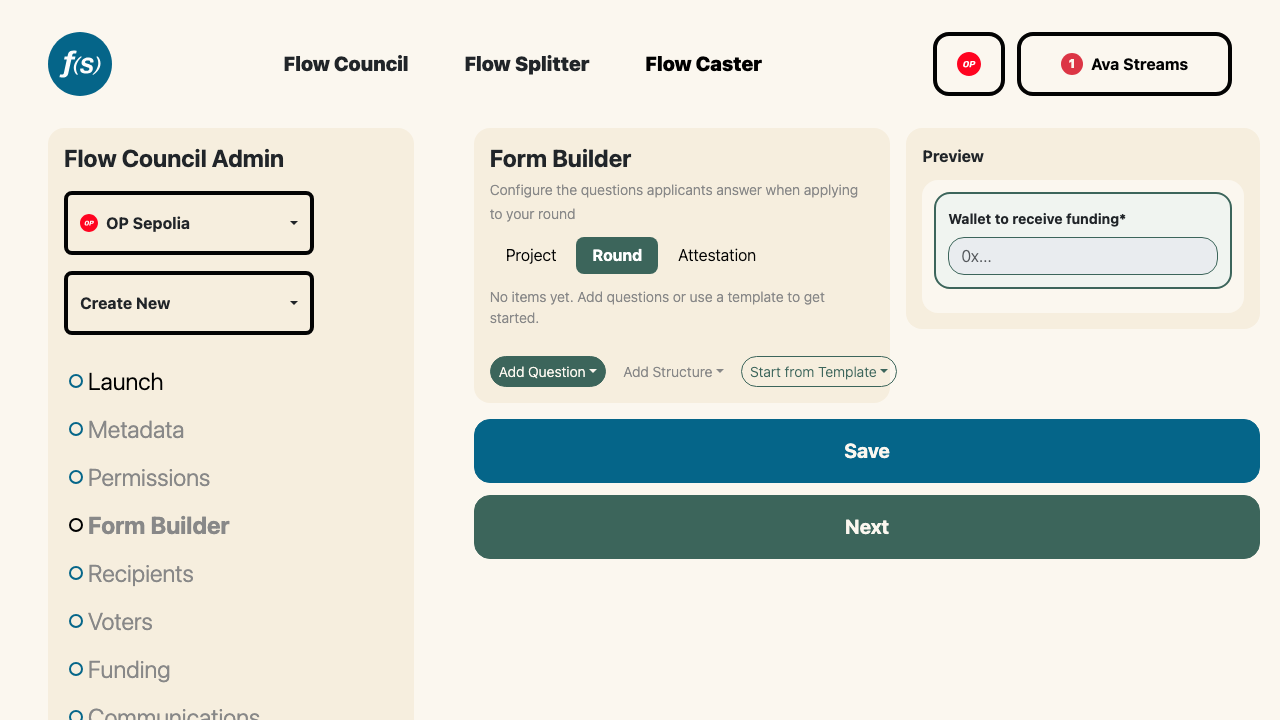
Building the application form.
The Form Builder lets you configure the questions applicants answer when applying to your round—no code required. You'll find it on the Form Builder page of the Flow Council launchpad. Add elements, drag to reorder them, expand a card to edit its settings, and hit Save when you're done.
The form is split into three tabs:
- Project – standardized, public fields shared across every Flow Council (project name, description, logo, banner, website, socials, GitHub repos, smart contracts, and more). These are fixed—you can't edit them, but they're always collected.
- Round – your custom, round-specific questions. Every round form starts with a locked Wallet to receive funding field; everything else is up to you.
- Attestation – a second custom section, typically used for commitments, KYC, and consent.
Field types
Build questions from these types:
- Short Text – a single-line text answer.
- Long Text – a multi-line answer, with an optional Markdown editor and optional min/max character limits.
- Number – a numeric answer with optional min/max bounds.
- Single Choice (
select) – pick one of a list of options. - Multiple Choice (
multiSelect) – pick any number of options. - Yes / No (
boolean) – a simple toggle. - URL – a link, with an optional Base URL that responses must start with.
- Email – a validated email address.
- Telegram – a Telegram handle.
- ETH Address (
ethAddress) – a wallet or contract address. - Milestone – a structured, repeatable block (see below).
You can also add structure elements that organize the form without asking anything:
- Heading (
section) – a titled section that also drives question numbering. - Text (
description) – descriptive copy, with markdown support. - Dividing Line (
divider) – a visual separator.
Most questions have a Required toggle. A live Preview pane shows applicants exactly what they'll see as you build.
Milestones
A Milestone element collects a repeatable set of structured commitments. Configure:
- Milestone Label – the noun shown on each block (e.g.
Milestone). - Sub-item Label – either
DeliverableorActivation, naming the concrete item inside each milestone. - Minimum Count (
minCount) – how many milestones applicants must complete, from1to5. They can always add more. - Description Placeholder and optional Description Min/Max Characters for the per-milestone description field.
Milestone questions are always required—the Required toggle is hidden for them. You can add more than one milestone element to a form, and each is tracked independently.
Templates
Press Start from Template to begin from a Minimal form or the richer GoodBuilders form, then customize. Loading a template replaces the current form, so save anything you want to keep first.
Review & acceptance
Reviewing happens on the Manage Recipients page. It's gated to addresses holding the Recipient Review role (see Permissions); without it, the module is read-only.
Each council exposes a shareable Application Link to hand out to prospective applicants, and an applications open/closed toggle to stop accepting new submissions. The applications table lists every project with its status; export everything to CSV at any time.
Open a Submitted application to review it across four tabs—Project, Round, Attestation, and Comments:
- Comments are internal: they're visible only to managers and admins with access to the review, never to the applicant. Use them to discuss a submission privately.
- The Review Comment field, by contrast, is shared with the project and accompanies your decision.
Set a New Status and submit your decision:
- Accepted – adds the project's funding wallet to the onchain distribution pool as a recipient.
- Changes Requested – asks the applicant to revise (pair this with unlocking edits).
- Rejected – declines the application.
Accepted recipients can later be moved to Removed or Graduated, which takes them back out of the pool onchain. From the table you can also connect recipients to the pool in bulk with Connect All.
Submitted and decided applications are locked by default. Flip the edit lock switch on an application to let the applicant make changes and resubmit.